Run your first task
Use the operator GUI to preview and execute a two-step demo with mock hardware. You will load a task, inspect the planned trajectory, and see the simulated robot move between two named poses.
Complete Installation first. This walkthrough uses the CMS robot model with the ePick tool. It requires no physical robot, camera, or chat credentials.
Prepare the mock session
Open a terminal in your EROBS repository root—the directory containing setup.sh and src/. Load the workspace and select the included CMS drylab configuration:
source /opt/ros/jazzy/setup.bash
source install/setup.bash
export BEAMBOT_BEAMLINE_CONFIG="$PWD/src/beambot/config/cms_drylab.yaml"
The demo JSON defines the movements; cms_drylab.yaml supplies the robot model, tool settings, poses, and scene. The use_mock_hardware:=true launch option below selects simulation.
Launch the orchestrator:
ros2 launch beambot beambot_bringup.launch.py \
  use_mock_hardware:=true \
  enable_vision:=false \
  enable_pipettor:=false \
  enable_joystick:=false \
  enable_tracing:=false
Leave this terminal running. The robot controller, MoveIt, and RViz start when you submit the first task. An empty robot view before that request is expected.
use_mock_hardware selects mock UR control. The other flags disable device subsystems that are unnecessary here. The demo moves the arm with ePick attached; it does not exchange tools, activate suction, or capture camera images.
Open the GUI
Open a second terminal in the same EROBS repository root. Load the workspace and select the same CMS drylab configuration:
source /opt/ros/jazzy/setup.bash
source install/setup.bash
export BEAMBOT_BEAMLINE_CONFIG="$PWD/src/beambot/config/cms_drylab.yaml"
ros2 run mtc_gui mtc_gui_client
The GUI’s chat connection may report a missing credential or dependency. That does not prevent this manual task. Use the sequence editor and 3D View tab.
Load the demo
In the GUI, choose File → Load JSON and open src/cms/tasks/demo_epick_moveto.json from your EROBS checkout. You can also download the demo JSON.
Check that Start Gripper is epick and the sequence contains these two MoveTo steps:
Step |
Target |
|---|---|
1 |
|
2 |
|
The file includes both poses as six joint angles in degrees and selects joint-space planning for each move. safe_tool_exchange is a pose name; moving there does not perform a tool exchange.
{
  "start_gripper": "epick",
  "poses": {
    "safe_sample_transport": [79.72, -69.5, -81.91, -117.92, -268.05, -157.15],
    "safe_tool_exchange": [152.33, -110.63, -100.17, -59.12, -270.43, -207.7]
  },
  "tasks": [
    {
      "task_type": "moveto",
      "target": "safe_sample_transport",
      "planning_type": "joint"
    },
    {
      "task_type": "moveto",
      "target": "safe_tool_exchange",
      "planning_type": "joint"
    }
  ]
}
Preview the sequence
Select Dry Run.
Press Execute.
Wait for initialization and planning to finish. The first request takes longer because it starts MoveIt and the mock controller.
Inspect the trajectory in 3D View or RViz.
The Log should report:
Dry-run preview complete: 2/2 steps planned
Preview playback moves the displayed robot through the plan. It does not command the mock controller. The mock robot starts close to the first target, so most visible motion occurs during the second move.
Execute with mock hardware
Clear Dry Run, then press Execute again. The controller now follows the trajectory, and live joint updates show the robot reaching the target.
The Log should report:
Task completed: 2/2 steps
The corresponding action result has success: true, completed_steps: 2, and total_steps: 2. A completed preview alone does not establish that execution succeeded.
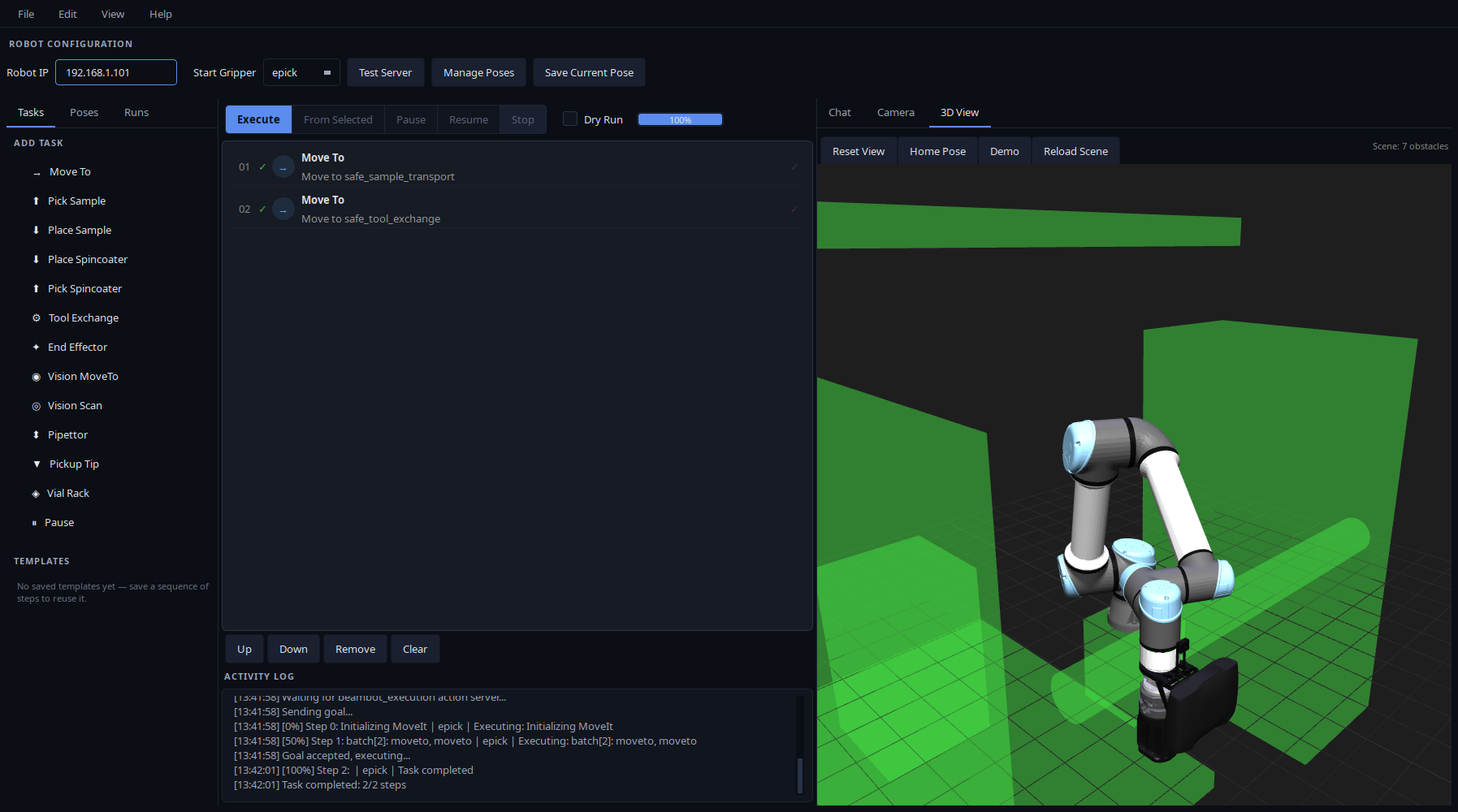
The completed ePick demo in the operator GUI. The 3D view shows the mock robot at safe_tool_exchange. Open the full-resolution screenshot.
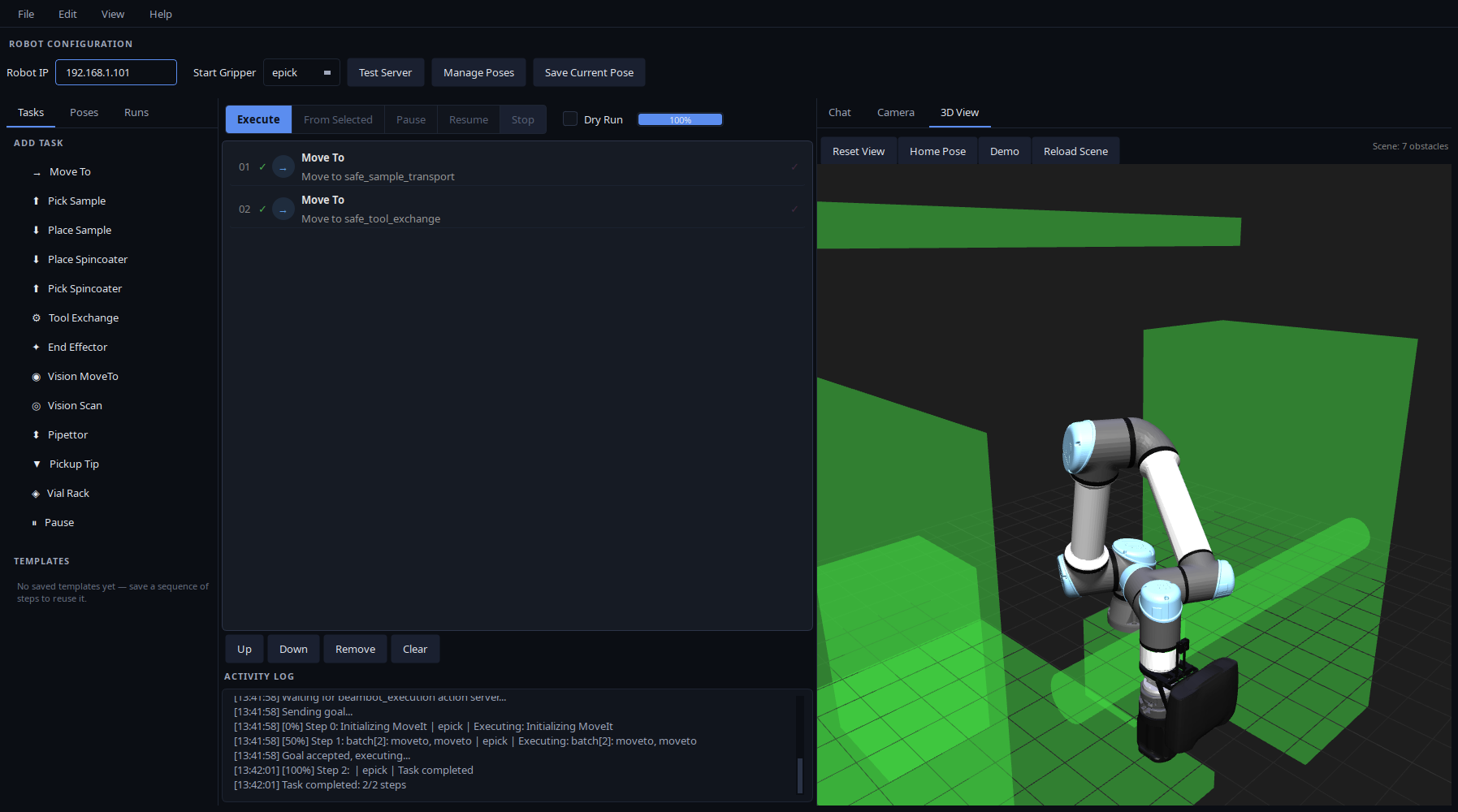
Run Dry Run again to preview the sequence from the current position. A repeated execution moves back to safe_sample_transport, then returns to safe_tool_exchange.
Finish the session
Close the GUI and stop the launch terminal with Ctrl+C. The orchestrator stops MoveIt and the mock controller as it shuts down; wait for the terminal prompt to return. Before starting a new session, check that nothing from this one is still running, for example with ros2 node list. Duplicate controllers can interfere with a new session; see shutdown.
If the task does not complete
Symptom |
Next check |
|---|---|
Execute stays greyed out |
The GUI has not received an execution state from the orchestrator. Check that the first terminal is still running, then press Test Server. |
GUI cannot reach the action server |
Keep the first terminal running and confirm both terminals have sourced the same workspace. If you use custom ROS networking settings, check that they match. |
Robot is absent before the first request |
Submit the preview; MoveIt starts on demand. |
Initialization fails |
Read the launch terminal for the first error. Check the installation and whether an older session is still running. |
Preview fails |
Read the reported planning error; confirm Start Gripper is |
Execute produces another preview |
Clear Dry Run before pressing Execute. |
Camera view is blank |
Expected: the camera is disabled in this walkthrough. |
Next, use the operator GUI guide to build sequences, or task scripts to add other task types.